Bluetooth Pairing & Connection Troubleshooting
BLE Pairing and StrikerLink Connection
Power On the Mavrik-Pro
- Press the PWR button located on the bottom of the blaster.
Pairing Advertisement
- When the Mavrik-Pro powers on, it will play the start-up chime and automatically go into Demo Mode.
- While demo modes are being operated, the relevant haptic and LED events will play on trigger pulls and sensor touches.
- If the Mavrik-Pro is idle, the BLE advertising lights will pulse in cyan.
Bluetooth Pairing
- Navigate to the Bluetooth settings window on the machine you wish to pair the Mavrik-Pro.
- If you are using Windows 11, navigate to the Device settings section under Bluetooth & devices in Settings.
- Under Bluetooth devices discovery, change the type from Default to Advanced.
- Click Add device, locate the Mavrik-Pro in the available BLE devices list, and select it for pairing.
- When the Mavrik-Pro is paired, it will play a solid cyan light on all LED strips.
For best performance, please use Windows 11 with a Bluetooth antenna that supports BLE 5.1 or above. Windows 10 and BLE 5.0 are compatible with limited support, and use of StrikerLink Bridge Mode is strongly encouraged.
Troubleshooting: Blaster Not Appearing in Windows?
Your computer may only be recognizing low power Bluetooth devices.
- Select Start > Settings > Bluetooth & devices > Devices.
- Under Device settings > Bluetooth devices discovery, Advanced must be selected to display all types of Bluetooth devices.
Bluetooth Unpairing
If you have previously connected your blaster to a PC, you may need to clear your Bluetooth connection. Here's how:
- Power on Mavrik. Hold the R and L side buttons for 4 seconds.
- LEDs should flash then turn off.
- Cycle power on your Mavrik-Pro. The LEDs are not illuminated, but the device is still on.
StrikerLink Connection
- If you are using the desktop version of StrikerLink, you can now run the application.
- If you are on an Android-based XR headset and have StrikerLink installed, the Mavrik-Pro will automatically connect to StrikerLink.
- If it does not, navigate to your app library and run the app.
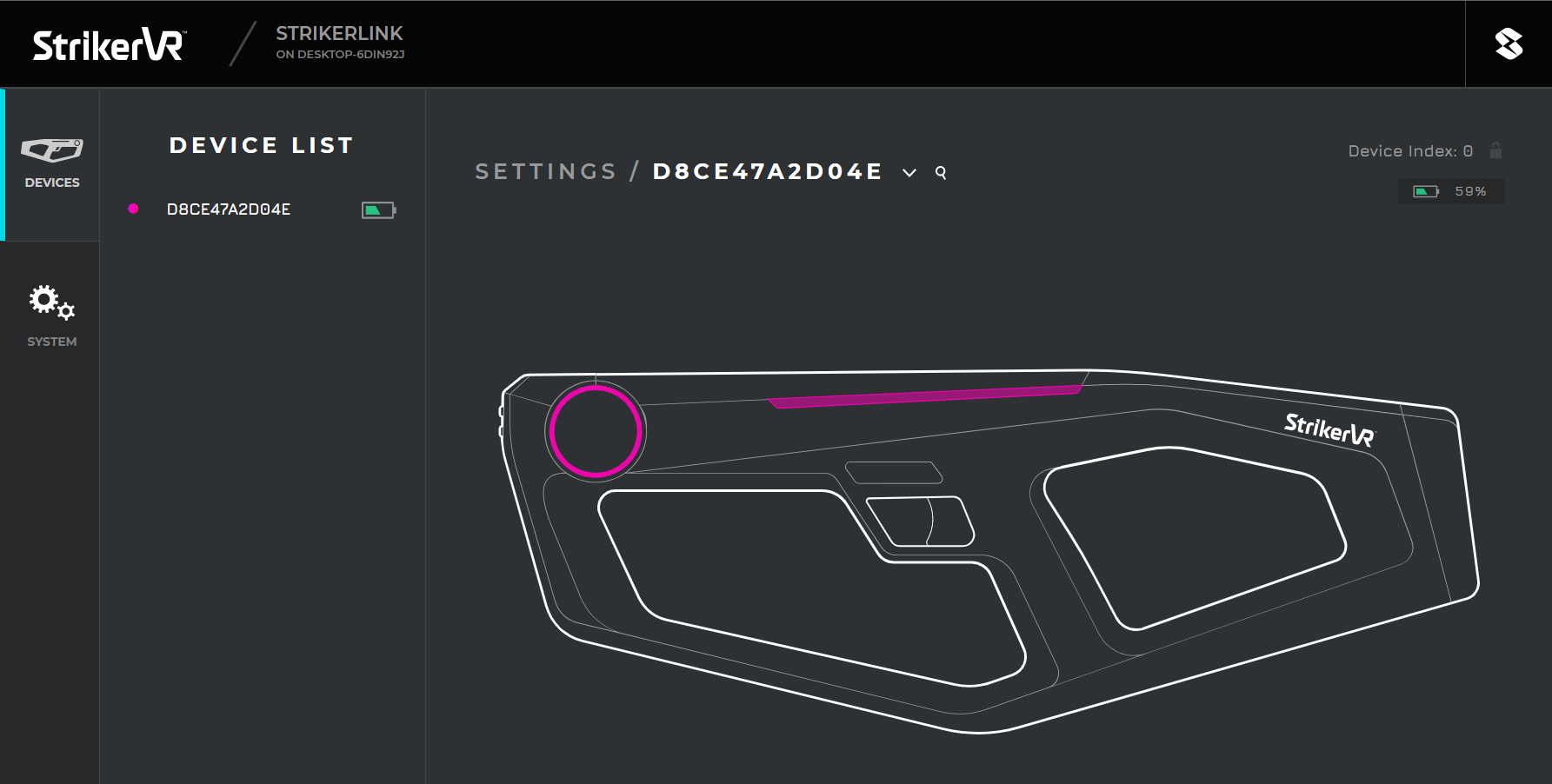
- When a connection is made to StrikerLink, the Mavrik-Pro LEDs will cascade forward in purple, followed by solid purple after the cascade.
- Your blaster is now ready to interface with your game or game engine.
- In your web browser, navigate to http://localhost:5046.
- On Android devices, enter your device's IP address followed by port
5046into your browser.- Example:
192.168.1.10:5046 - Here you should find the web service UI, Mavrik Manager.
- Example:
- When your device is connected, it will show up in your device list.
For more information on how to use Mavrik Manager, click here.